How to Share Access of Google Business Profile: GA4, GSC, GTM and GMB
How to Share Access of Google Business Profile: GA4, GSC, GTM and GMB
Last Updated:
Table of Content
Case Studies






Bhawana Vaishnav
Bhawana Vaishnav
Bhawana Vaishnav
SEO
SEO
SEO
10 Min Read
12 Min
10 Min Read
One of the first things you will be doing when working with a digital marketing agency, SEO specialist, or even a web development team is providing them access to your Google marketing tools. This gives professionals the ability to track performance on your website, analyze traffic, manage the visibility of your business, and optimize campaigns.
But, of course, sharing access must be appropriately executed with permission levels accurately and without sacrificing your account security.
This guide will walk you through, step by step, with detailed explanations, screenshot suggestions, and best practices for GA4, GSC, GTM and GBP.
Add Users to Google Analytics 4 (GA4)
Google's advanced analytics platform for tracking website visitors, user behavior, sources of traffic, and conversions. Agencies and SEO experts need access to GA4 to review performance and make data-driven marketing decisions. The permission set assigned to the agency will provide them with what they need to keep working efficiently while keeping your account secure.
With GA4, businesses can find solutions on:
Track where users come from
Understand what users do on your site
Measure conversions (leads, sales, sign-ups, etc.)
User journey analysis
Build audiences for ads
Track activity across websites and mobile apps together
It's essential in digital marketing, SEO, performance marketing, UI/UX analysis, and other business decisions.
Steps to Add a User:
Open Google Analytics and log in.
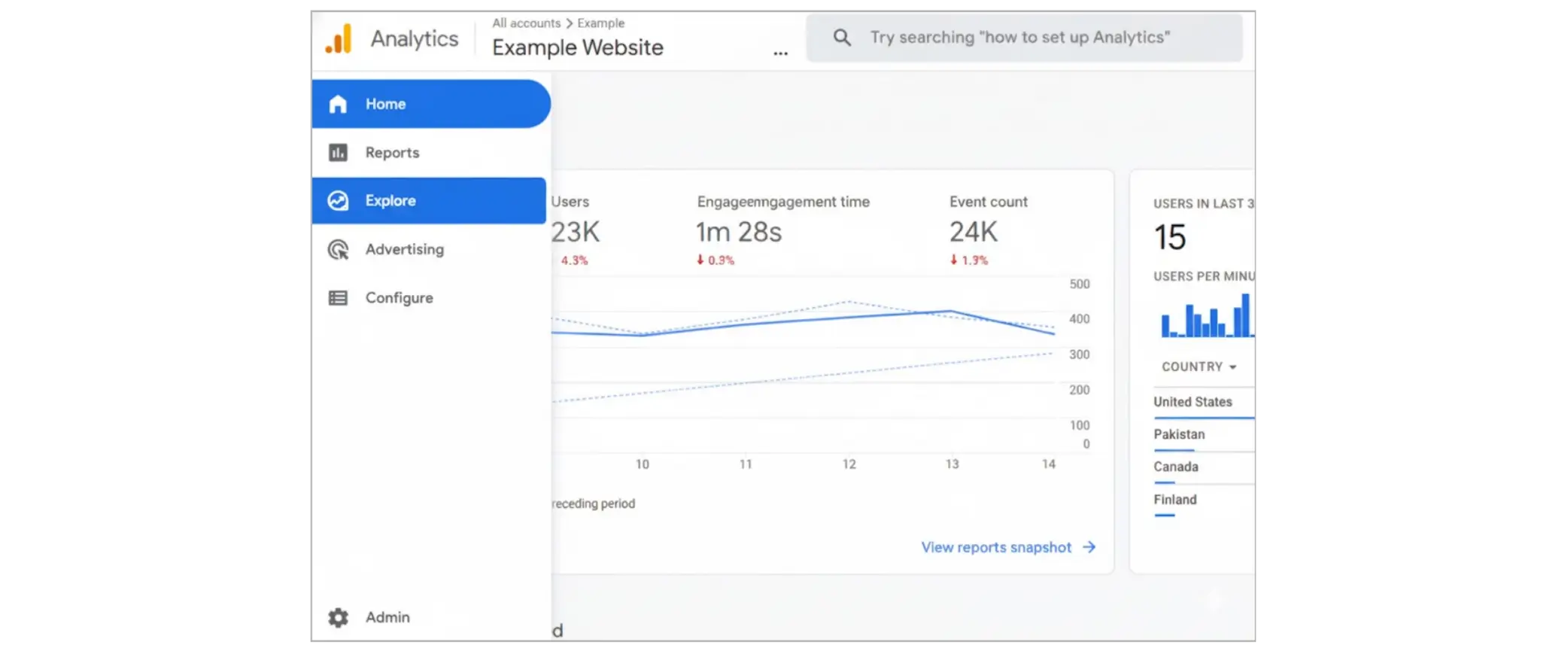
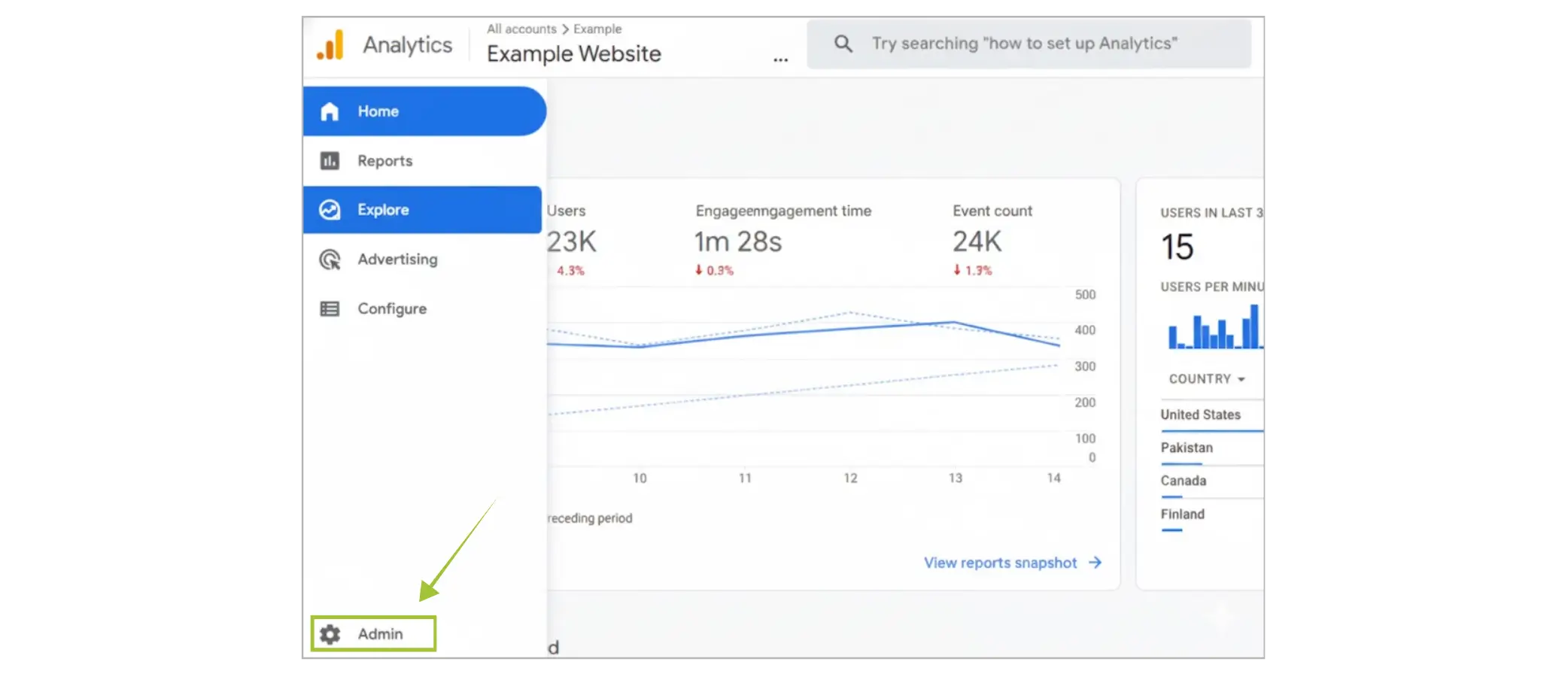
Click the Admin (gear icon) in the bottom-left corner.
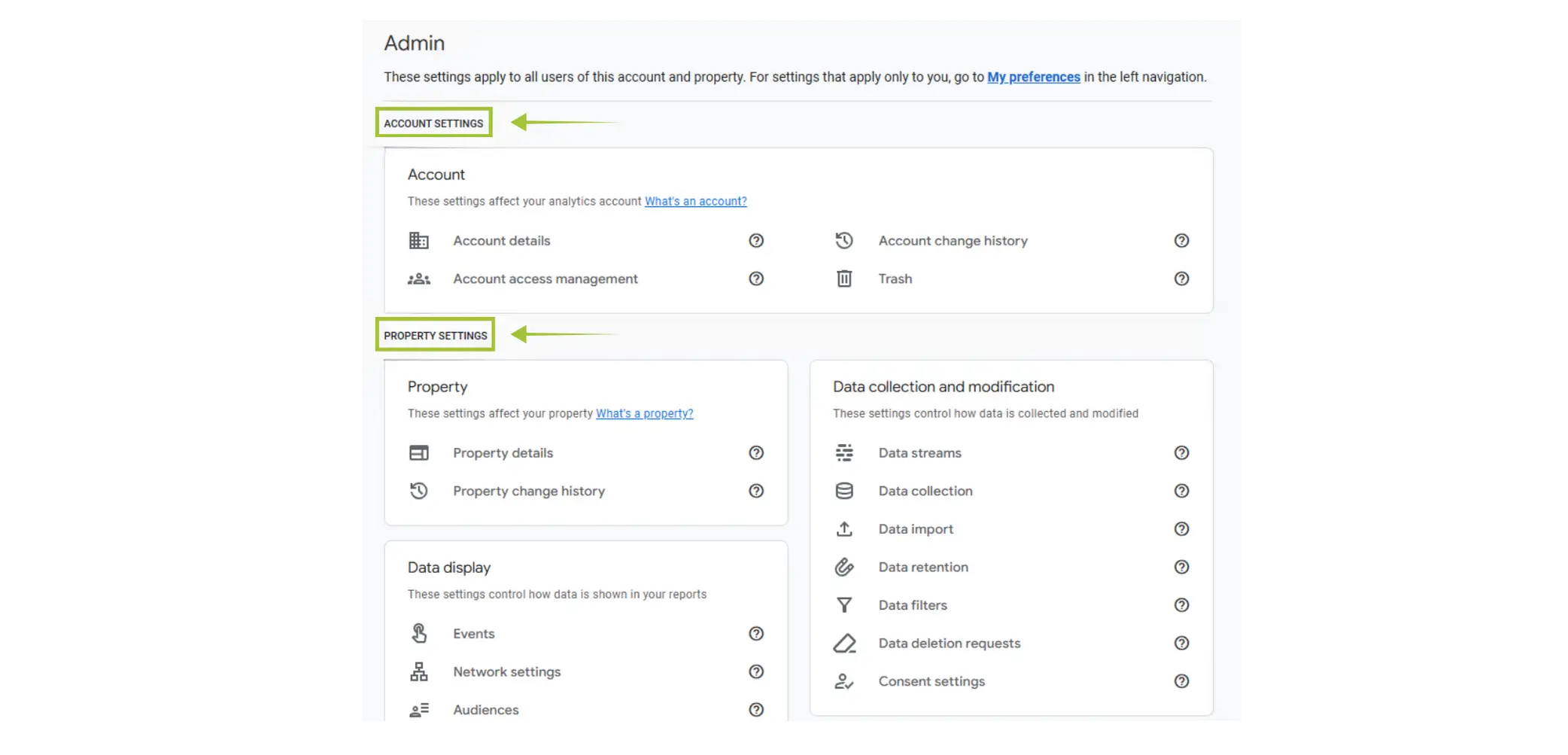
Choose whether you want to add the user at the Account or Property level.
Account-level → broadest access
Property-level → often recommended for agencies
Click Access Management.
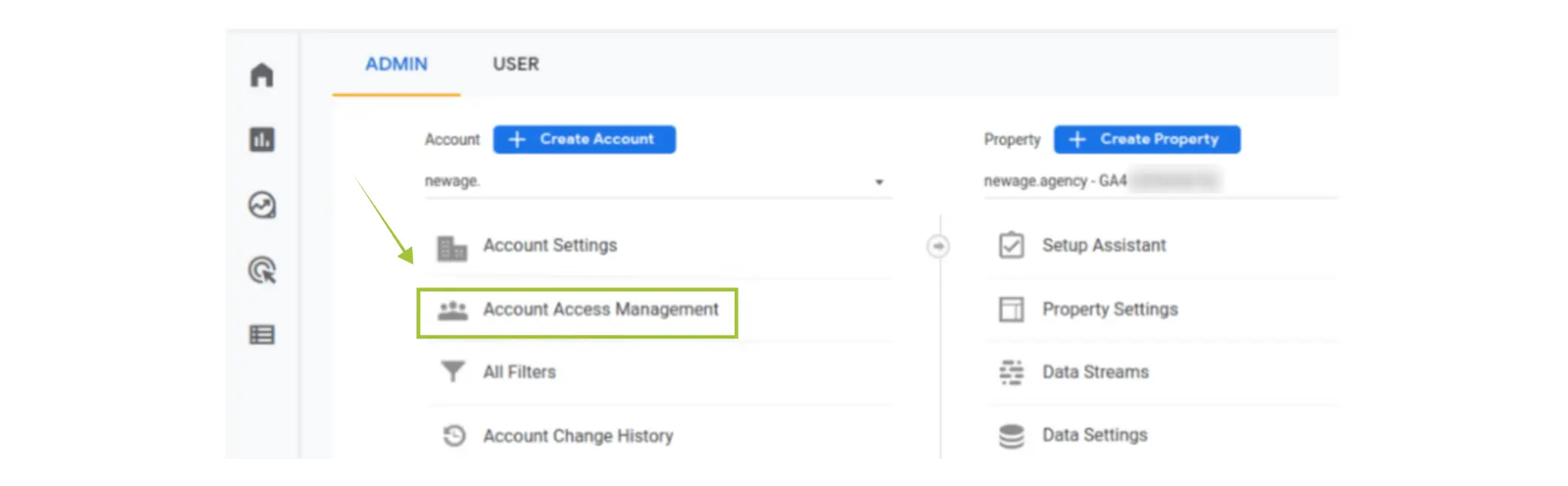
Click the + (plus icon) > Add users.

Enter the person’s email (must be a Google/Gmail email).
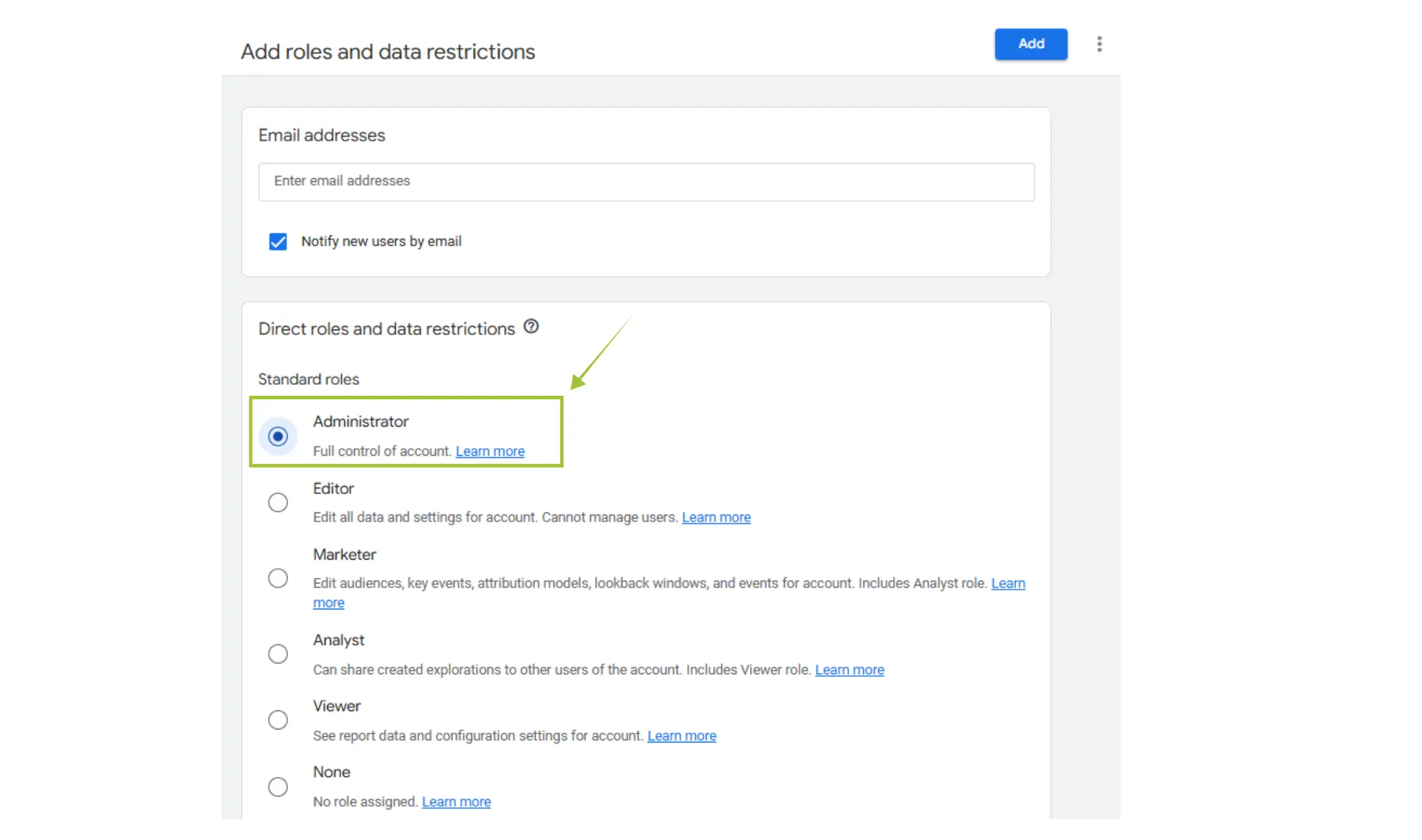
Choose permissions:
Viewer – read-only
Analyst – can create reports
Editor – can make configuration changes
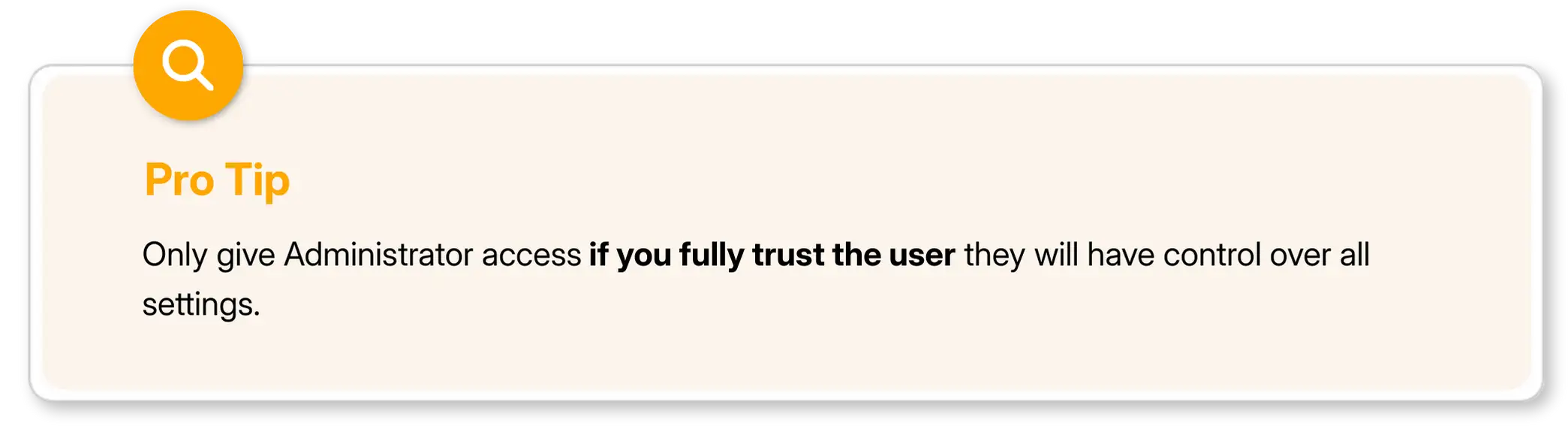
Administrator – full access, including adding/removing users.
Click Add.
Add Users to Google Search Console (GSC)
Google Search Console enables you to understand how your website looks and performs within organic Google Search. This will include indexing, search visibility, problems in performance, and ranking keywords. Giving access to an SEO professional allows them to troubleshoot issues and enhance your organic search presence. Google Search Console is useful, as it:
Shows your actual search performance
Helps fix indexing & crawling issues
Improve rankings with precise data.
Identifies keyword opportunities
Warns you about fines and security concerns
Enhances SEO strategy with real insights
Steps to Add a User:
Go to Search Console and choose the correct property.
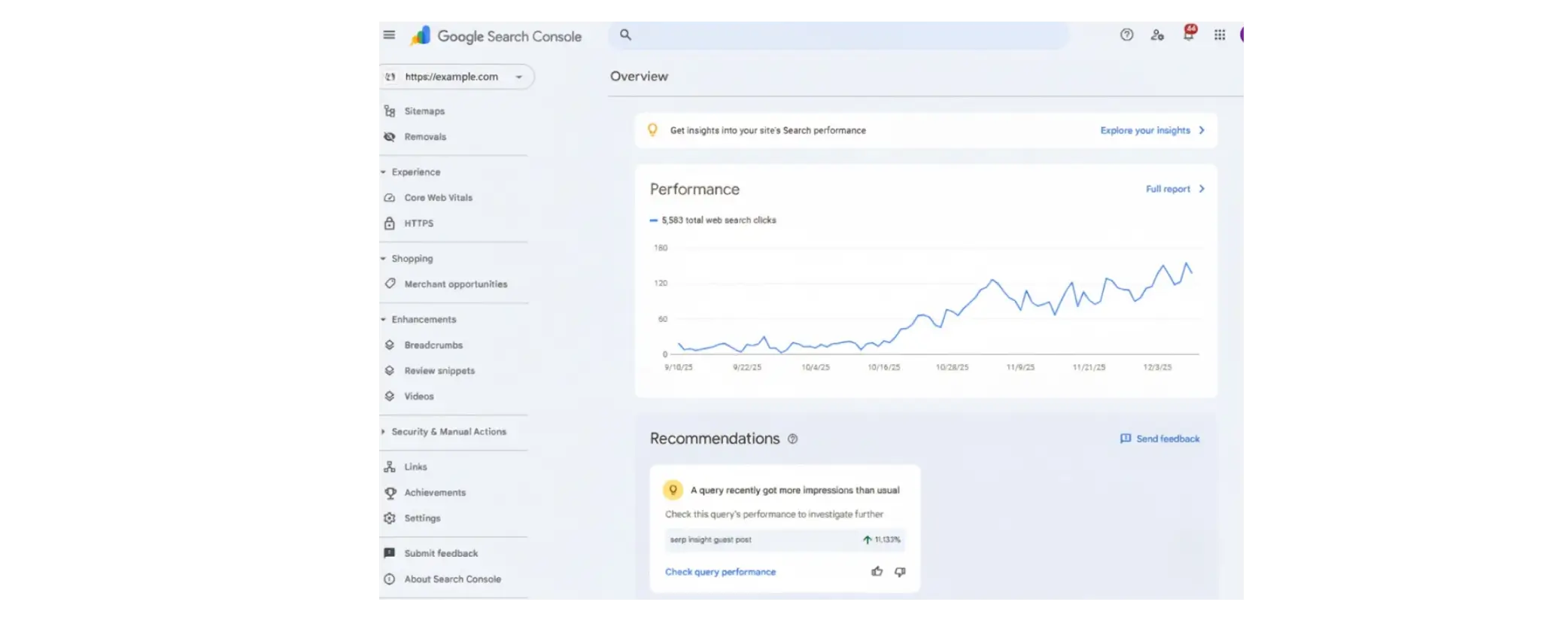
Click Settings on the left sidebar
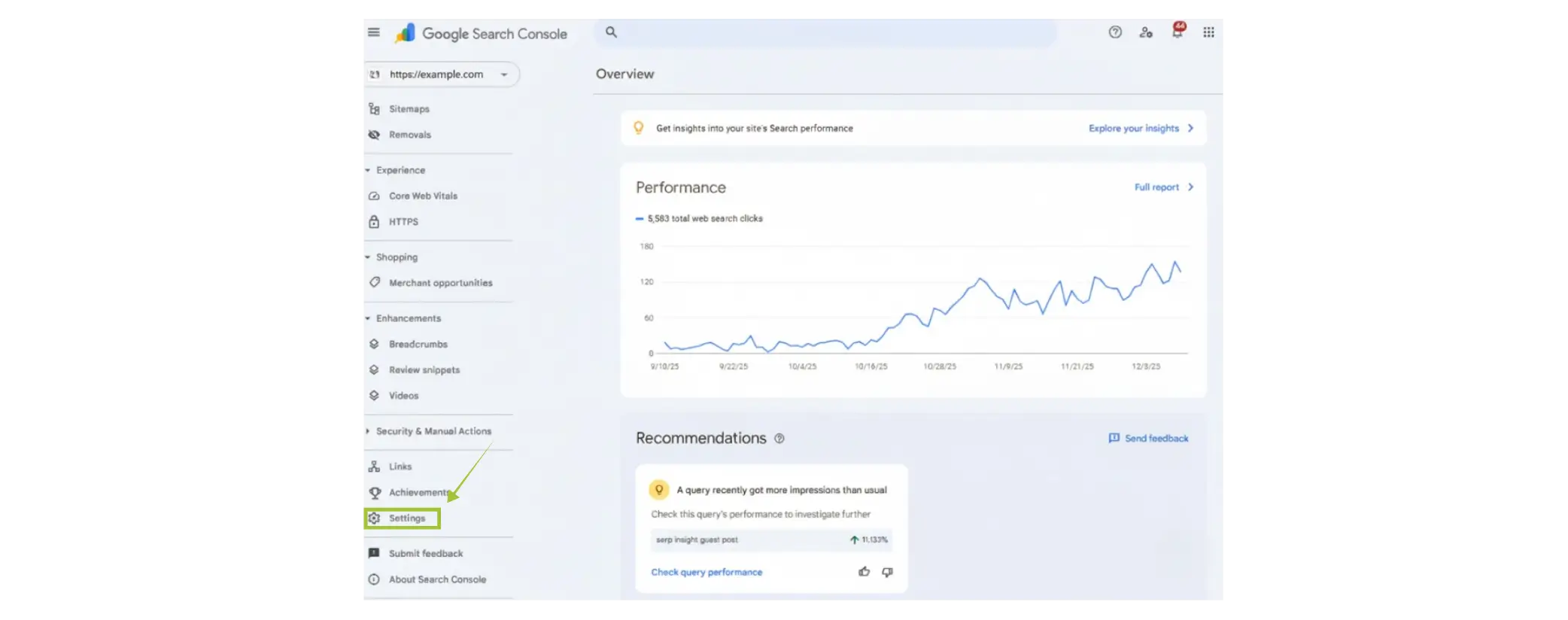
Select Users and permissions.
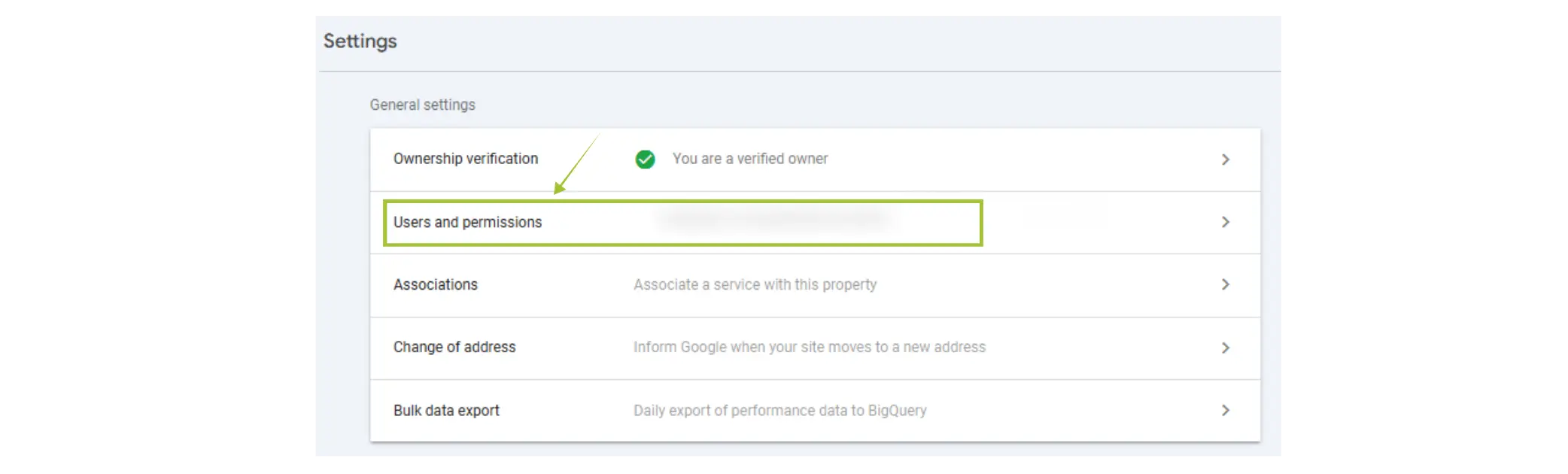
Click Add user (top-right).

Enter the person’s email.
Choose the permission level:
Full – recommended for SEO experts
Restricted – view only
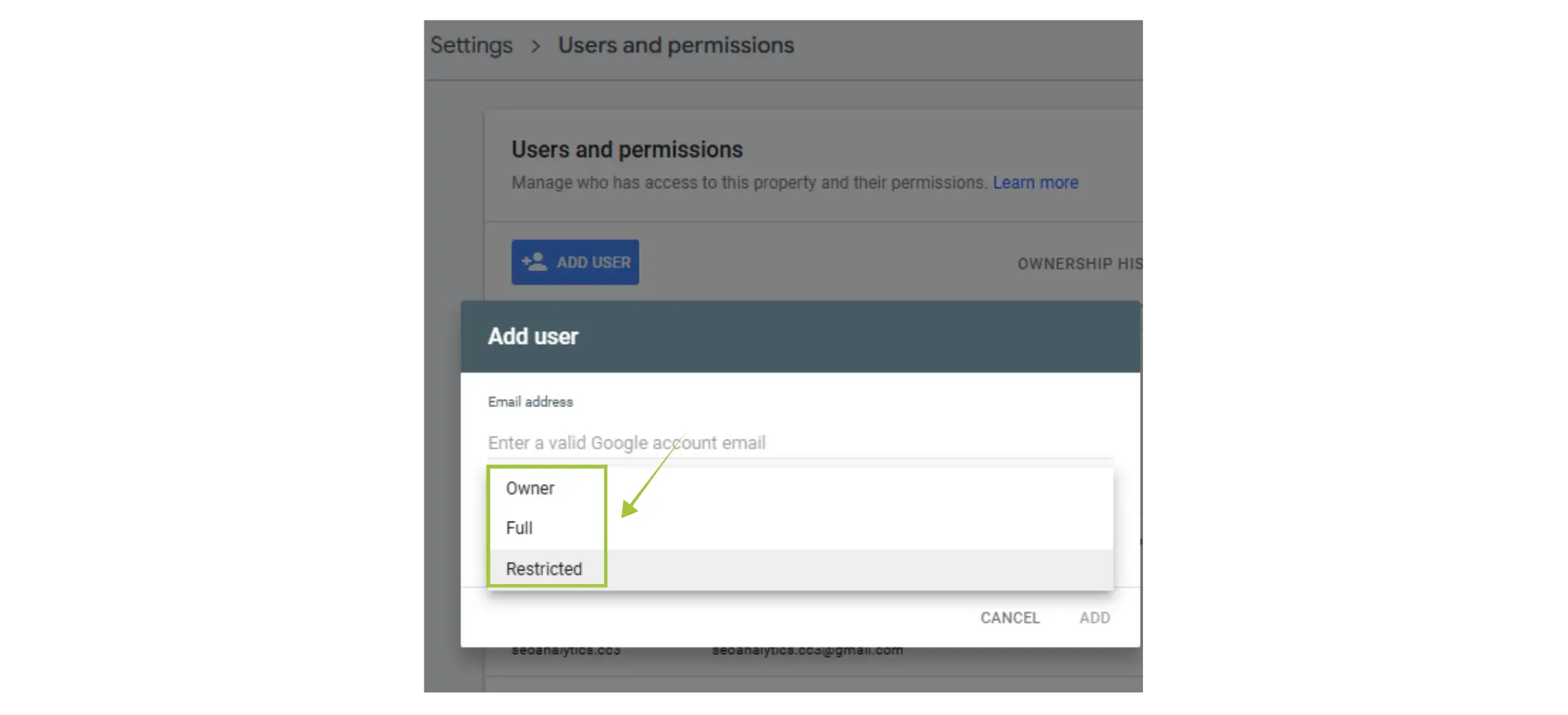
Click Add.
Add Users to Google Tag Manager (GTM)
Google Tag Manager: a powerful interface for managing all tracking scripts, tags, and pixels without having to change anything on the website. Give access only to the right experts who will accurately track analytics, ads, and conversions. GTM permission levels are a careful choice to ensure control over what gets published.
Steps to Add a User:
Open Google Tag Manager.
Select the correct account.
Go to Admin (top-right).
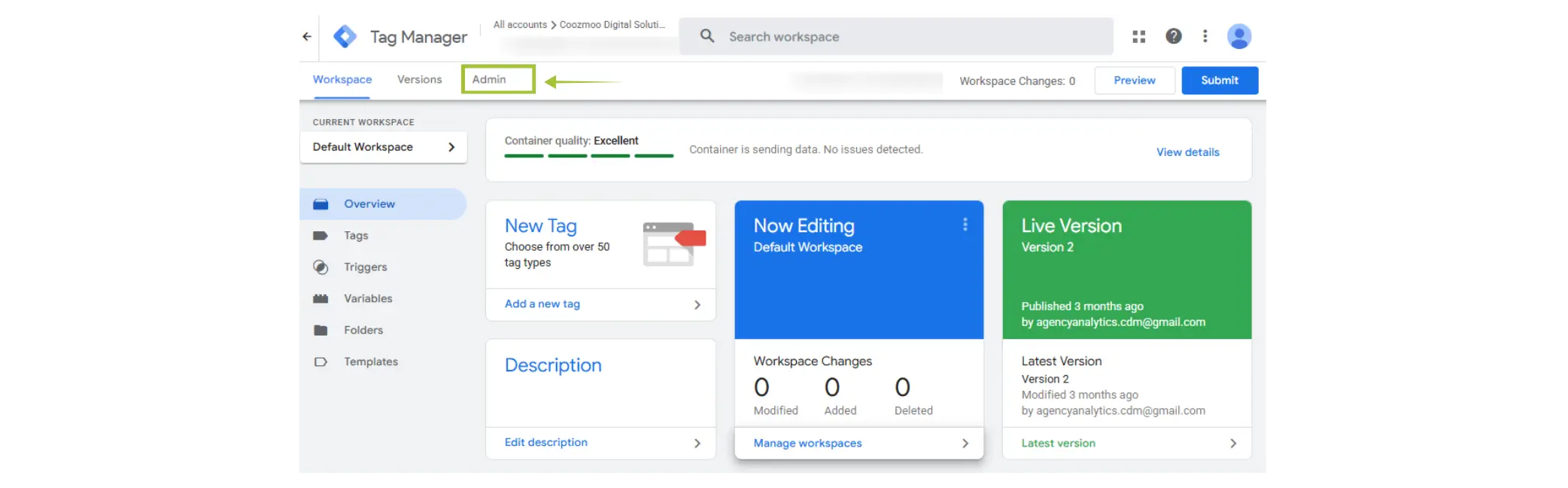
Under Account, click User Management.
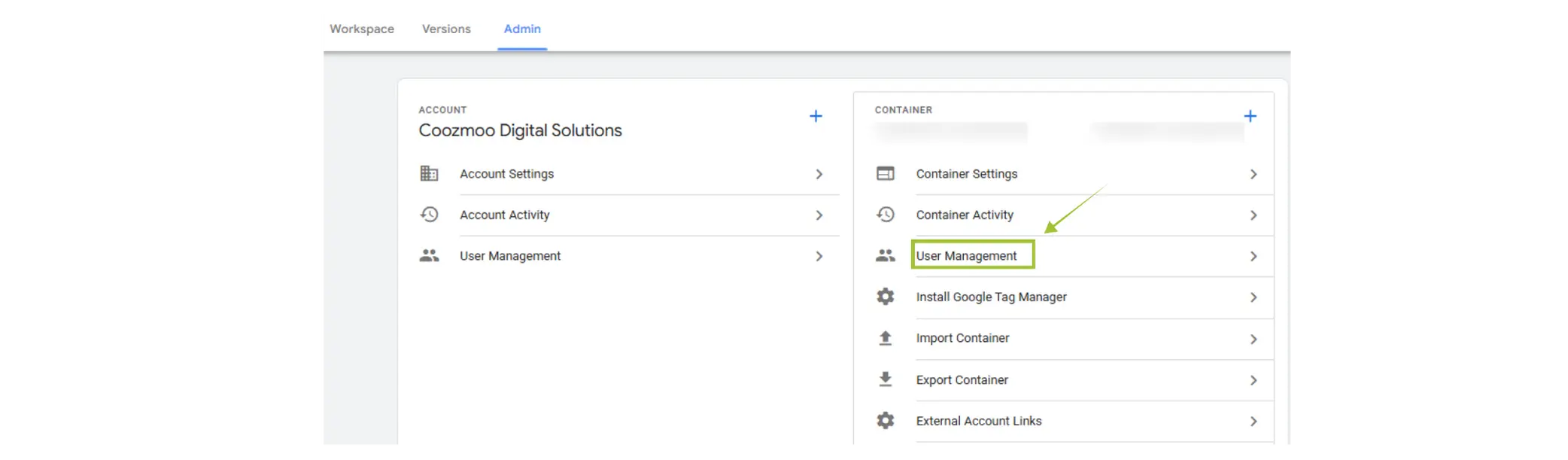
Click the + icon > Add users.

Enter their email.
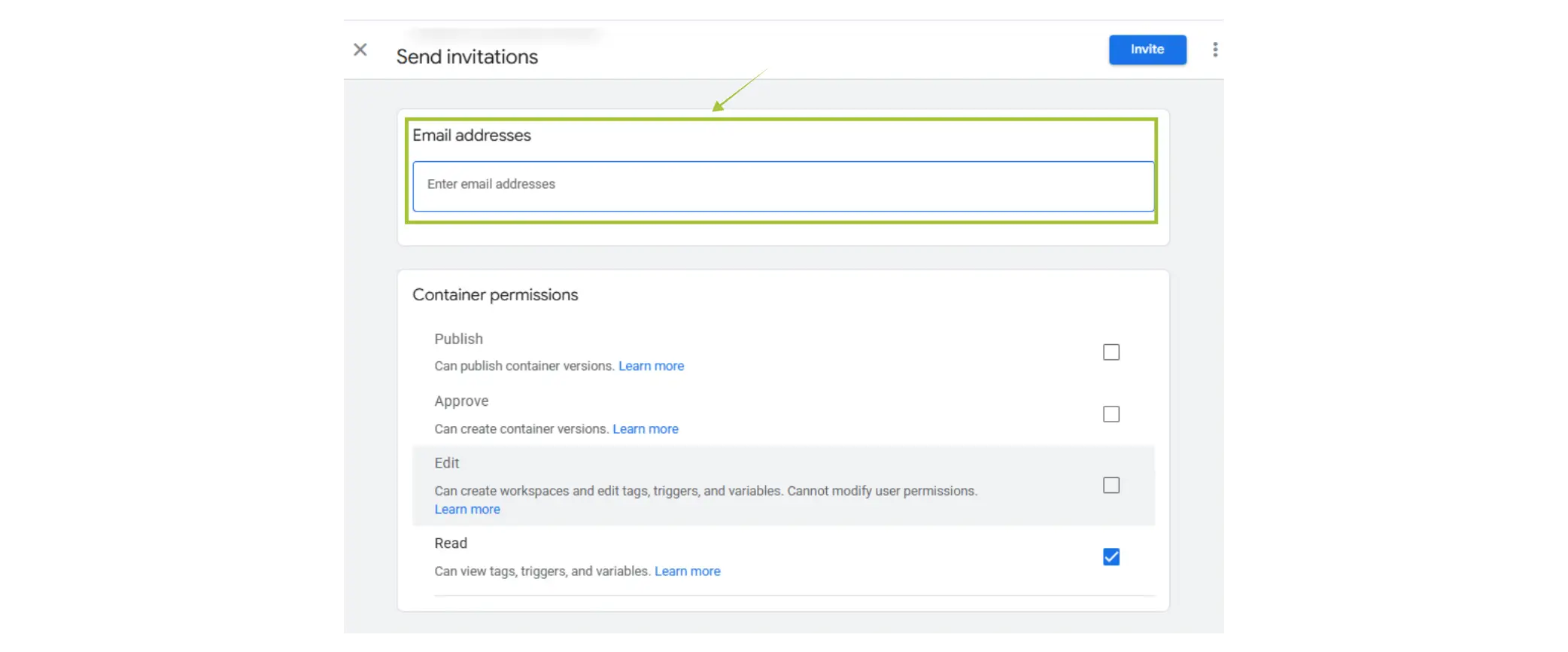
Choose Account Permissions:
User – basic access
Admin – full access, including adding users
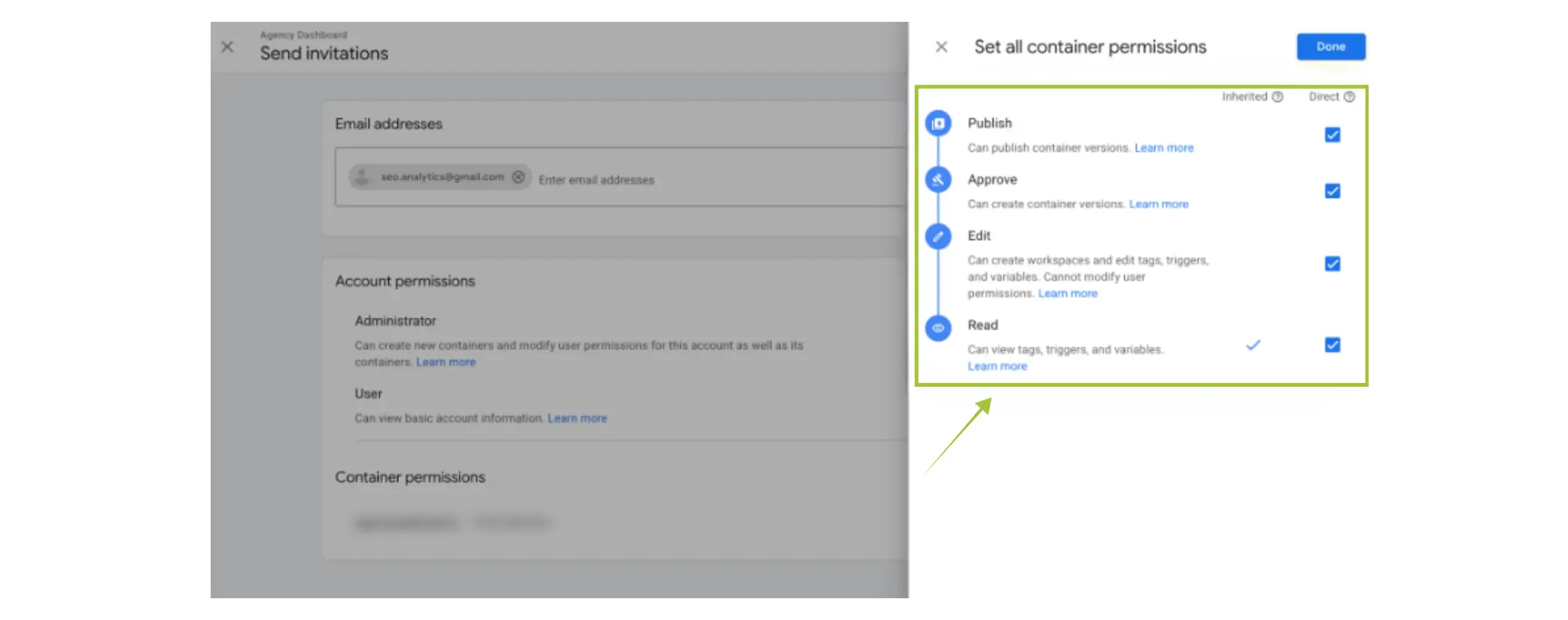
Assign Container Permissions (very important):
Read
Edit
Approve
Publish (only for trusted users).
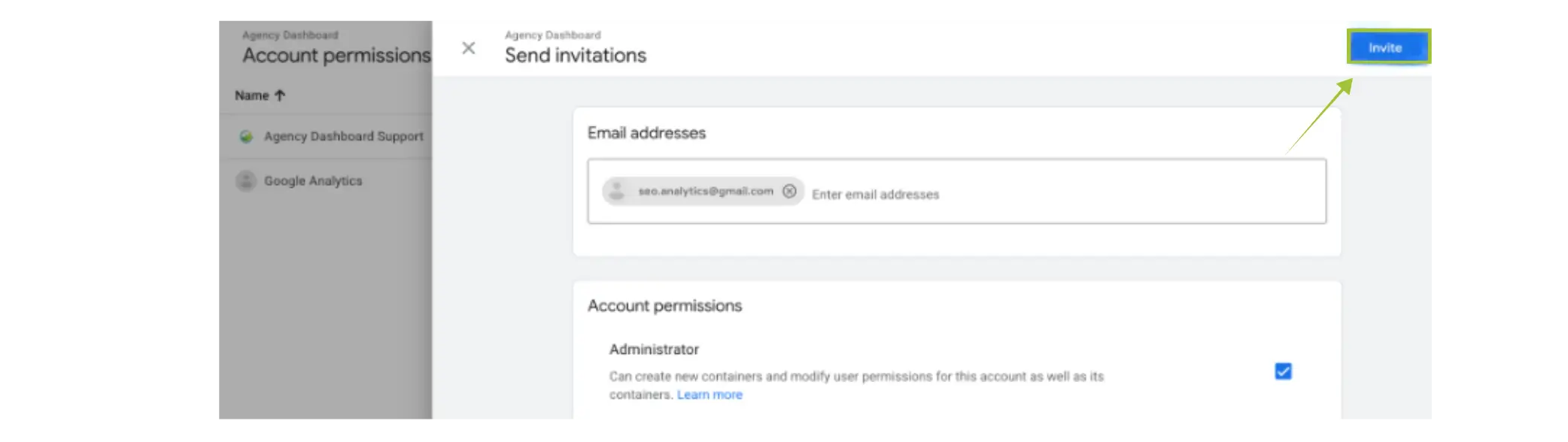
Click Invite.
Add Users to Google Business Profile (GBP)
A Google Business Profile, formerly named Google My Business, is very important in local SEO for a business that targets local customers. It can affect how the business will look not only on Google Maps and local searches but also on the knowledge panel. Proper access ensures your profile is accurate, optimized, and aligned with your marketing goals.
Steps to Add a User:
Step 1: Log in
Sign in using the Google account that manages the business.
Step 2: Select the Business Profile
If you manage multiple businesses, choose the specific business profile for which you want to give access.
Step 3: Open Business Profile Settings
On the left side, click “Settings”
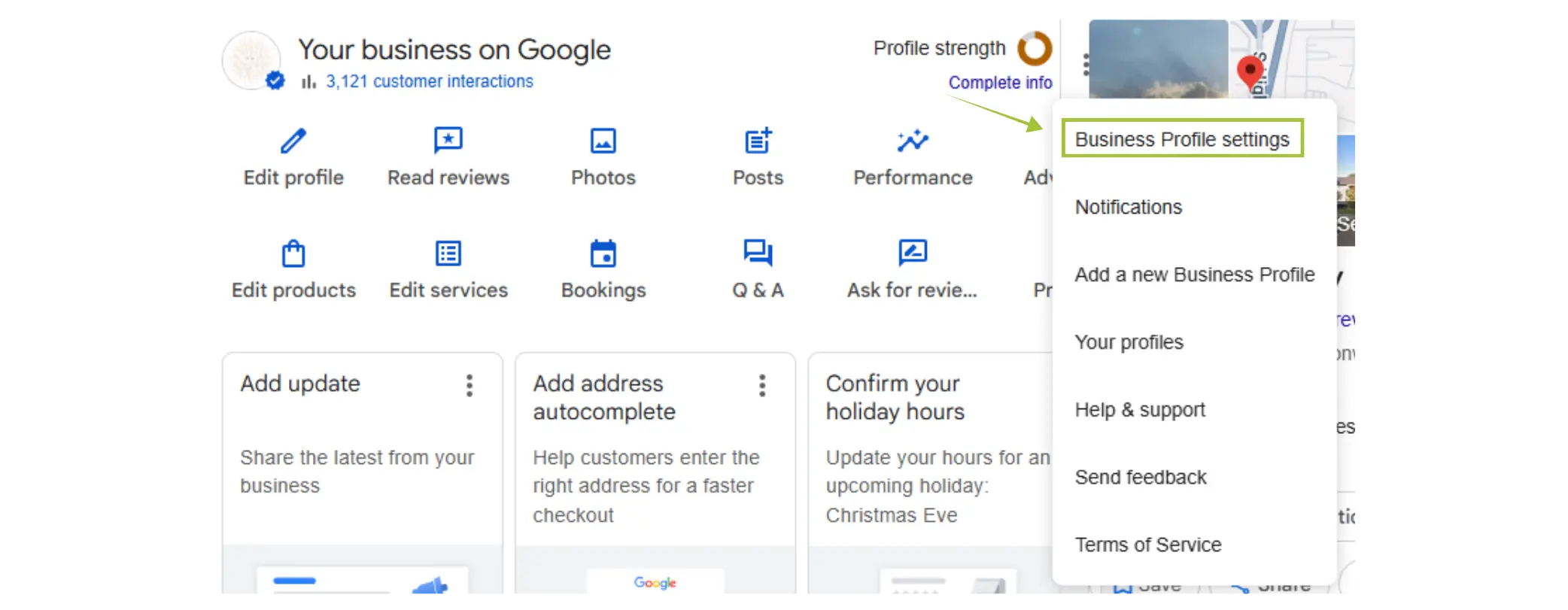
Click Managers or People & Access.
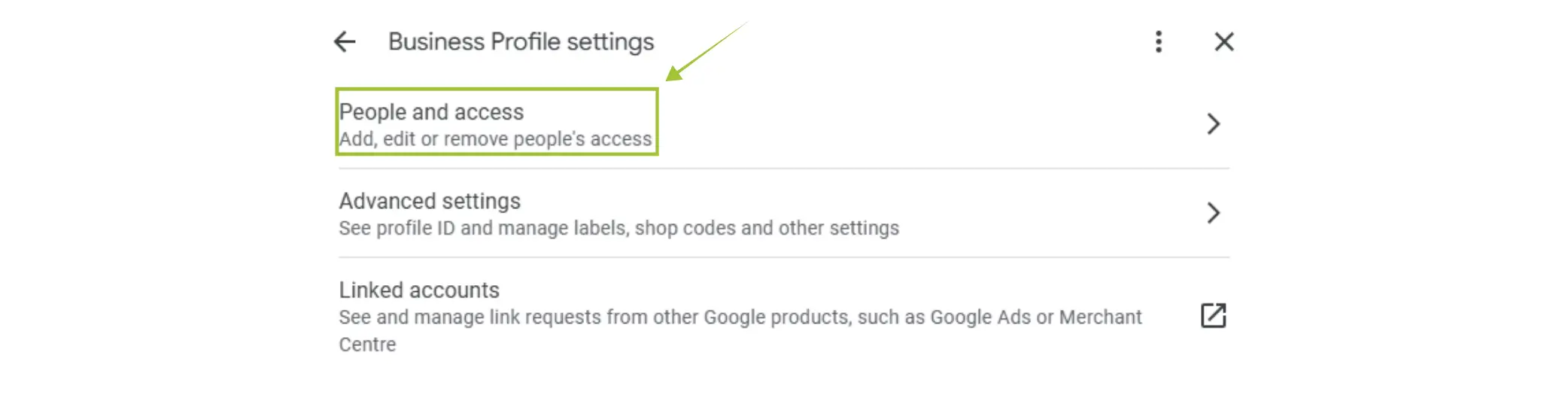
Step 4: Add a New Manager

Enter the email address of the person you want to give access to.
Choose the Role:
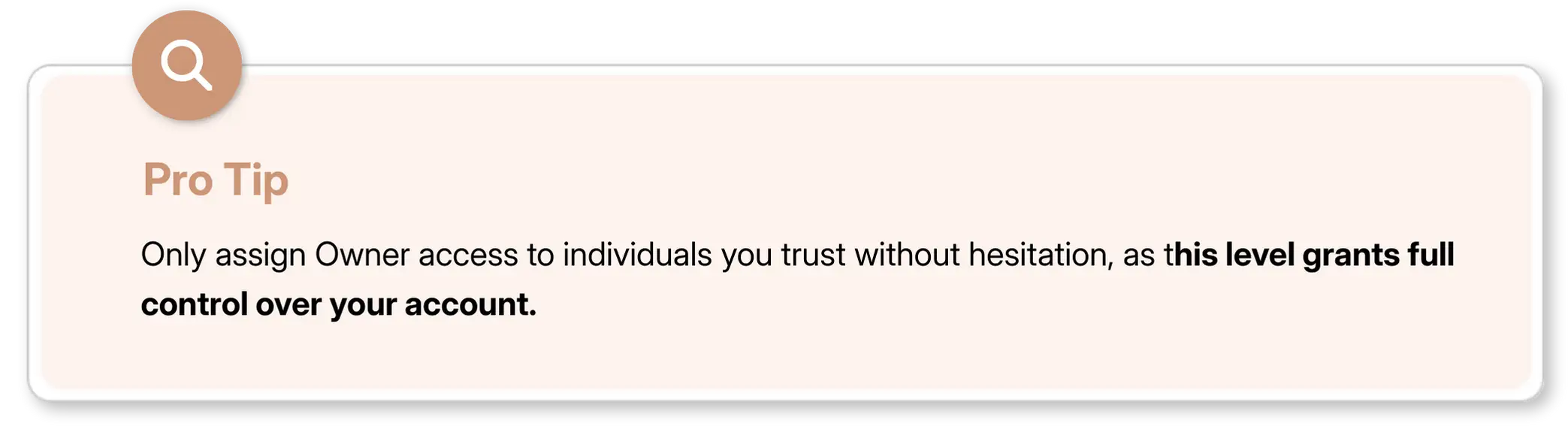
Owner – Full access (can remove you)
Manager – Can edit listing information
Site Manager – Limited access
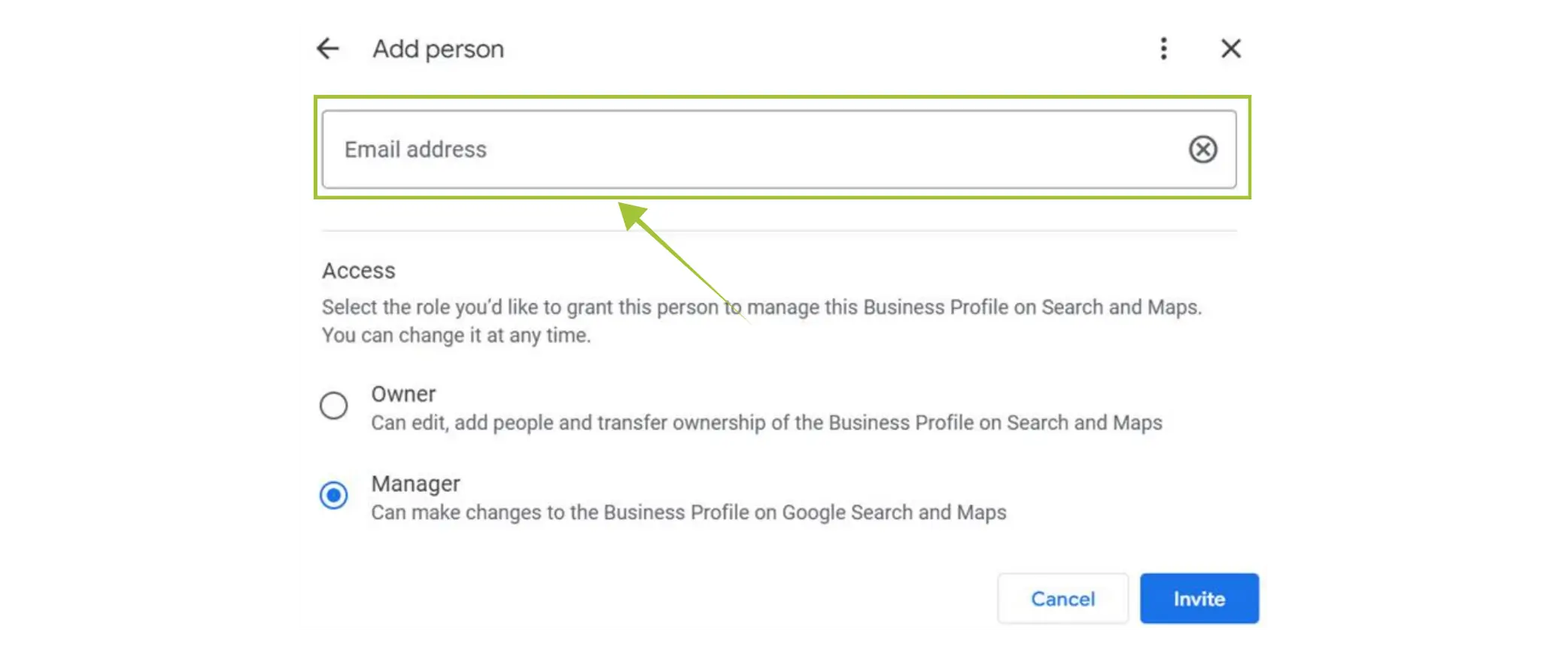
Step 5: Send Invitation
Click “Invite.”
Understanding the Right Permission Levels
Tool | Best Access for Agencies | Notes |
|---|---|---|
GA4 | Editor or Administrator | Admin only when needed |
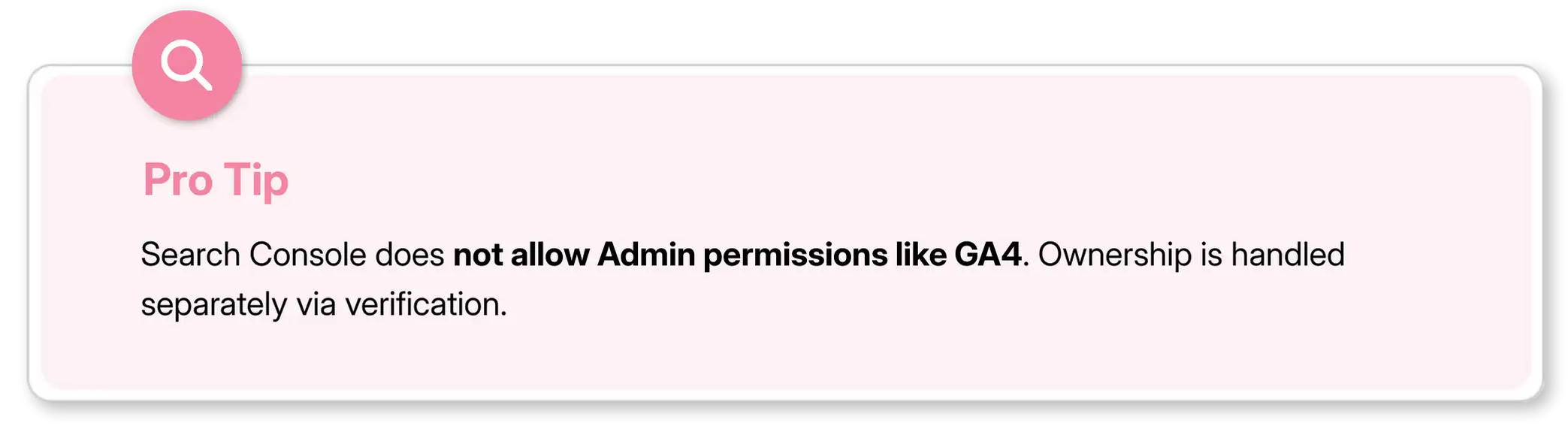
GSC | Full Access | No “Admin” ownership is separate |
GTM | Edit + Publish | Publish only for trusted users |
GBP | Manager | Owner only for long-term partners |
Common Problems & How to Avoid Them
1. Wrong type of email
All platforms require a Google/Gmail email. If there's anyone using a non-Gmail email, ask the person to convert or use a Google Workspace email.
2. Adding users at the wrong level
Make informed choices about Account vs. Property/Container access for both GA4 and GTM.
3. Lack of ownership
If you see stuff like errors with “You don’t have permission,” this generally means the business owner has not verified the property. You are trying to add users at a level you do not control.
4. Forgot to hit ‘Publish’ in GTM.
Changes aren't live until the user publishes the container.
Final Thoughts
No More Access Struggles.
Giving access to the necessary Google tools doesn't need to be confusing or stressful. You can safely and efficiently grant agencies or specialists the exact permissions required by following the above steps and without compromising your account security. Proper access ensures faster setup, better insights, and more effective SEO and marketing efforts. Once everything is correctly connected, you'll streamline collaboration, avoid delays, and set the foundation for strong, measurable digital performance.
Proper access unlocks:
faster setup
smooth collaboration
accurate performance tracking
You'll prevent delays and make sure your marketing initiatives are successful once everything is properly connected.
FAQs
How do I add a user to Google Analytics 4 (GA4)?

Go into Google Analytics 4 and just click Admin, the gear icon on the bottom left. Then pick Account Access Management or Property Access Management, depending what you actually need. Next hit the plus icon, choose Add users, enter their Gmail address then set a permission tier (Viewer, Analyst, Editor, or Administrator), afterwards click Add. They'll get an email invite and they have to accept it. Usually property level access is better for agencies because it narrows the reach to just one website, not more. Also, check how organic search services use GA4 insights to craft and adjust strategy.
What permission level should I give my SEO agency in Google tools?
For GA4, you need to assign Editor or Administrator access, not just "someone", for GSC give Full access. For GTM, set Edit + Publish permissions, make sure it's not less. For Google Business Profile, use Manager access. Keep the Owner and Administrator roles only for long-term trusted partners, and honestly don't hand those out casually. Also, never give away Primary Owner status on GBP, ever. When you're trying to limit scope, always add the users at the Property or Container level instead of Account level, that way the reach stays narrower. And if you're running local SEO campaigns, remember that the whole thing really depends on proper GBP access, so you can manage listings properly without surprises.
How do I add a user to Google Search Console?
Go to Search Console then pick the right property. Tap Settings on the left sidebar, then go to Users and permissions. Click Add user, type in their Gmail address, and select either Full (recommended for SEO professionals) or Restricted (view only). Click Add and thats it. The user gets access right away once they accept the invitation. With Full access, agencies can submit sitemaps, inspect URLs, and see all performance data. Run a free SEO audit, and use the GSC insights to understand what your site is saying under the hood.
How do I add a user to Google Tag Manager?
Open GTM, pick the right account, and click Admin up in the top-right. After that, under Account, click User Management then hit the plus icon to add users. Type in their Gmail address and choose Account Permissions, (User or Admin). Next, give them Container Permissions like Read, Edit, Approve, or Publish. In most agencies you usually want Edit plus Publish, because that covers the whole thing. When you're done, click Invite. Keep in mind, anything changed inside GTM isn't really live yet until somebody clicks Publish in that container. Also, your technical SEO setup really hinges on tags and tracking being configured the correct way.
What is the difference between GA4, GSC, GTM, and GBP?
GA4 tracks website visitors, user behavior, and the final conversions stuff. GSC shows how your site does inside Google search results, like indexing, keywords, and crawl issues. GTM runs the tracking scripts, tags, and pixels without you touching website code. GBP steers how your business looks on Google Maps and in local search outcomes. Put it together and you get this fairly complete picture: GTM takes care of the tracking code, GA4 measures what people do, GSC keeps an eye on search visibility, and GBP manages your local presence. If you want a full framework for all four tools, grab our SEO Audit Checklist ebook.
One of the first things you will be doing when working with a digital marketing agency, SEO specialist, or even a web development team is providing them access to your Google marketing tools. This gives professionals the ability to track performance on your website, analyze traffic, manage the visibility of your business, and optimize campaigns.
But, of course, sharing access must be appropriately executed with permission levels accurately and without sacrificing your account security.
This guide will walk you through, step by step, with detailed explanations, screenshot suggestions, and best practices for GA4, GSC, GTM and GBP.
Add Users to Google Analytics 4 (GA4)
Google's advanced analytics platform for tracking website visitors, user behavior, sources of traffic, and conversions. Agencies and SEO experts need access to GA4 to review performance and make data-driven marketing decisions. The permission set assigned to the agency will provide them with what they need to keep working efficiently while keeping your account secure.
With GA4, businesses can find solutions on:
Track where users come from
Understand what users do on your site
Measure conversions (leads, sales, sign-ups, etc.)
User journey analysis
Build audiences for ads
Track activity across websites and mobile apps together
It's essential in digital marketing, SEO, performance marketing, UI/UX analysis, and other business decisions.
Steps to Add a User:
Open Google Analytics and log in.
Click the Admin (gear icon) in the bottom-left corner.
Choose whether you want to add the user at the Account or Property level.
Account-level → broadest access
Property-level → often recommended for agencies
Click Access Management.
Click the + (plus icon) > Add users.
Enter the person’s email (must be a Google/Gmail email).
Choose permissions:
Viewer – read-only
Analyst – can create reports
Editor – can make configuration changes
Administrator – full access, including adding/removing users.
Click Add.
Add Users to Google Search Console (GSC)
Google Search Console enables you to understand how your website looks and performs within organic Google Search. This will include indexing, search visibility, problems in performance, and ranking keywords. Giving access to an SEO professional allows them to troubleshoot issues and enhance your organic search presence. Google Search Console is useful, as it:
Shows your actual search performance
Helps fix indexing & crawling issues
Improve rankings with precise data.
Identifies keyword opportunities
Warns you about fines and security concerns
Enhances SEO strategy with real insights
Steps to Add a User:
Go to Search Console and choose the correct property.
Click Settings on the left sidebar
Select Users and permissions.
Click Add user (top-right).
Enter the person’s email.
Choose the permission level:
Full – recommended for SEO experts
Restricted – view only
Click Add.
Add Users to Google Tag Manager (GTM)
Google Tag Manager: a powerful interface for managing all tracking scripts, tags, and pixels without having to change anything on the website. Give access only to the right experts who will accurately track analytics, ads, and conversions. GTM permission levels are a careful choice to ensure control over what gets published.
Steps to Add a User:
Open Google Tag Manager.
Select the correct account.
Go to Admin (top-right).
Under Account, click User Management.
Click the + icon > Add users.
Enter their email.
Choose Account Permissions:
User – basic access
Admin – full access, including adding users
Assign Container Permissions (very important):
Read
Edit
Approve
Publish (only for trusted users).
Click Invite.
Add Users to Google Business Profile (GBP)
A Google Business Profile, formerly named Google My Business, is very important in local SEO for a business that targets local customers. It can affect how the business will look not only on Google Maps and local searches but also on the knowledge panel. Proper access ensures your profile is accurate, optimized, and aligned with your marketing goals.
Steps to Add a User:
Step 1: Log in
Sign in using the Google account that manages the business.
Step 2: Select the Business Profile
If you manage multiple businesses, choose the specific business profile for which you want to give access.
Step 3: Open Business Profile Settings
On the left side, click “Settings”
Click Managers or People & Access.
Step 4: Add a New Manager
Enter the email address of the person you want to give access to.
Choose the Role:
Owner – Full access (can remove you)
Manager – Can edit listing information
Site Manager – Limited access
Step 5: Send Invitation
Click “Invite.”
Understanding the Right Permission Levels
Tool | Best Access for Agencies | Notes |
|---|---|---|
GA4 | Editor or Administrator | Admin only when needed |
GSC | Full Access | No “Admin” ownership is separate |
GTM | Edit + Publish | Publish only for trusted users |
GBP | Manager | Owner only for long-term partners |
Common Problems & How to Avoid Them
1. Wrong type of email
All platforms require a Google/Gmail email. If there's anyone using a non-Gmail email, ask the person to convert or use a Google Workspace email.
2. Adding users at the wrong level
Make informed choices about Account vs. Property/Container access for both GA4 and GTM.
3. Lack of ownership
If you see stuff like errors with “You don’t have permission,” this generally means the business owner has not verified the property. You are trying to add users at a level you do not control.
4. Forgot to hit ‘Publish’ in GTM.
Changes aren't live until the user publishes the container.
Final Thoughts
No More Access Struggles.
Giving access to the necessary Google tools doesn't need to be confusing or stressful. You can safely and efficiently grant agencies or specialists the exact permissions required by following the above steps and without compromising your account security. Proper access ensures faster setup, better insights, and more effective SEO and marketing efforts. Once everything is correctly connected, you'll streamline collaboration, avoid delays, and set the foundation for strong, measurable digital performance.
Proper access unlocks:
faster setup
smooth collaboration
accurate performance tracking
You'll prevent delays and make sure your marketing initiatives are successful once everything is properly connected.
FAQs
How do I add a user to Google Analytics 4 (GA4)?
Go into Google Analytics 4 and just click Admin, the gear icon on the bottom left. Then pick Account Access Management or Property Access Management, depending what you actually need. Next hit the plus icon, choose Add users, enter their Gmail address then set a permission tier (Viewer, Analyst, Editor, or Administrator), afterwards click Add. They'll get an email invite and they have to accept it. Usually property level access is better for agencies because it narrows the reach to just one website, not more. Also, check how organic search services use GA4 insights to craft and adjust strategy.
What permission level should I give my SEO agency in Google tools?
For GA4, you need to assign Editor or Administrator access, not just "someone", for GSC give Full access. For GTM, set Edit + Publish permissions, make sure it's not less. For Google Business Profile, use Manager access. Keep the Owner and Administrator roles only for long-term trusted partners, and honestly don't hand those out casually. Also, never give away Primary Owner status on GBP, ever. When you're trying to limit scope, always add the users at the Property or Container level instead of Account level, that way the reach stays narrower. And if you're running local SEO campaigns, remember that the whole thing really depends on proper GBP access, so you can manage listings properly without surprises.
How do I add a user to Google Search Console?
Go to Search Console then pick the right property. Tap Settings on the left sidebar, then go to Users and permissions. Click Add user, type in their Gmail address, and select either Full (recommended for SEO professionals) or Restricted (view only). Click Add and thats it. The user gets access right away once they accept the invitation. With Full access, agencies can submit sitemaps, inspect URLs, and see all performance data. Run a free SEO audit, and use the GSC insights to understand what your site is saying under the hood.
How do I add a user to Google Tag Manager?
Open GTM, pick the right account, and click Admin up in the top-right. After that, under Account, click User Management then hit the plus icon to add users. Type in their Gmail address and choose Account Permissions, (User or Admin). Next, give them Container Permissions like Read, Edit, Approve, or Publish. In most agencies you usually want Edit plus Publish, because that covers the whole thing. When you're done, click Invite. Keep in mind, anything changed inside GTM isn't really live yet until somebody clicks Publish in that container. Also, your technical SEO setup really hinges on tags and tracking being configured the correct way.
What is the difference between GA4, GSC, GTM, and GBP?
GA4 tracks website visitors, user behavior, and the final conversions stuff. GSC shows how your site does inside Google search results, like indexing, keywords, and crawl issues. GTM runs the tracking scripts, tags, and pixels without you touching website code. GBP steers how your business looks on Google Maps and in local search outcomes. Put it together and you get this fairly complete picture: GTM takes care of the tracking code, GA4 measures what people do, GSC keeps an eye on search visibility, and GBP manages your local presence. If you want a full framework for all four tools, grab our SEO Audit Checklist ebook.



Summarize with AI



Want to Skyrocket Revenue? Get a Free Audit Today!
Want to Skyrocket Revenue? Get a Free Audit Today!



4.9/5 Ratings!


Don’t miss our revenue growth tips!
Get expert marketing tips—straight to your inbox, like thousands of happy clients.
Don’t miss our revenue growth tips!
Get expert marketing tips—straight to your inbox, like thousands of happy clients.
Don’t miss our revenue growth tips!
Don’t miss our revenue growth tips!
Get expert marketing tips—straight to your inbox, like thousands of happy clients.
Relevant Blogs on Organic SEO
Relevant Blogs on Organic SEO
Unlock data-driven insights in Organic SEO—explore our featured blogs and skyrocket your revenue before your competitors do.
Unlock data-driven insights in Organic SEO—explore our featured blogs and skyrocket your revenue before your competitors do.

SEO
Sep 21, 2026
5 Min Read
Audience-First SEO: How to Rank by Putting Readers First
SEO
Sep 21, 2026
5 Min Read
Audience-First SEO: How to Rank by Putting Readers First
SEO
Sep 21, 2026
5 Min Read
Audience-First SEO: How to Rank by Putting Readers First

SEO
Sep 19, 2026
5 Min Read
How to Add SEO Keywords to Your Website: Where and How
SEO
Sep 19, 2026
5 Min Read
How to Add SEO Keywords to Your Website: Where and How
SEO
Sep 19, 2026
5 Min Read
How to Add SEO Keywords to Your Website: Where and How

SEO
Sep 18, 2026
5 Min Read
How XML Sitemaps Help Search Engines Discover New Pages
SEO
Sep 18, 2026
5 Min Read
How XML Sitemaps Help Search Engines Discover New Pages
SEO
Sep 18, 2026
5 Min Read
How XML Sitemaps Help Search Engines Discover New Pages































Ready to speak with an expert?
Data-Driven Marketing Agency That Elevates ROI
1100+
Websites Designed & Optimized to Convert
$280M+
Client Revenue Driven & Growing Strong
Discover how to skyrocket
your revenue today!
Trusted by 1000+ Owners!
Ready to speak with an expert?
Data-Driven Marketing Agency That Elevates ROI
1100+
Websites Designed & Optimized to Convert
$280M+
Client Revenue Driven & Growing Strong
Discover how to skyrocket
your revenue today!
Trusted by 1000+ Owners!
Want to skyrocket revenue?
4.9/5 Ratings!
Ready to speak with an expert?
Data-Driven Marketing Agency That Elevates ROI
1100+
Websites Designed & Optimized to Convert
$280M+
Client Revenue Driven & Growing Strong
Discover how to skyrocket
your revenue today!
Trusted by 1000+ Owners!
Call
Meet